Image to GIF Converter
Supported formats, size and limits
Choose one JPG, PNG or WebP image no larger than 5 MB. JPEG is useful for camera photographs, PNG retains crisp graphics, and WebP can hold a detailed picture in a compact upload. The file must actually match the selected image format; renaming an unrelated file will not turn it into a valid photo.
The upload is the visual starting point for a new animation, not a frame-by-frame video conversion. This service produces a square result, so an unusually wide or tall composition may need a thoughtful crop before you begin. Keep the subject away from the very edge if the movement needs space.
You may add an instruction describing what should move. Use a picture you own or have permission to use, especially when it contains another person or a recognizable product. Avoid uploading a sensitive image if you would not be comfortable having it processed by an external model.
What makes a good source photo
A well-lit subject with a clear outline gives the animation a stronger starting point. A face partially covered by hair, a paw hidden behind furniture or a shiny package against a reflective surface can be harder to interpret. You do not need a studio portrait; an ordinary, sharp photograph with a readable subject is often enough.
Look at the image at the size it will appear in a chat. If the expression or important detail disappears when the picture is small, crop closer before uploading. Leave a little margin around a moving hand or head, and avoid a composition where the subject touches the frame boundary.
Select an action that fits the original pose. A seated dog can tilt its head without changing its whole body position. A portrait facing the camera can blink or smile gently. Asking for a dramatic spin from a tightly cropped still gives the model much more missing information to invent.
Before uploading, inspect the lighting around the subject as well as the center of the image. Strong backlighting can hide facial features, while a bright reflection can obscure a product. If you have several versions of a photograph, choose the one with the clearest separation rather than simply choosing the largest file.
How different photo types behave
The same instruction does not suit every picture. Consider what should remain recognizable and which part of the scene can move without changing the identity of the subject.
Portraits
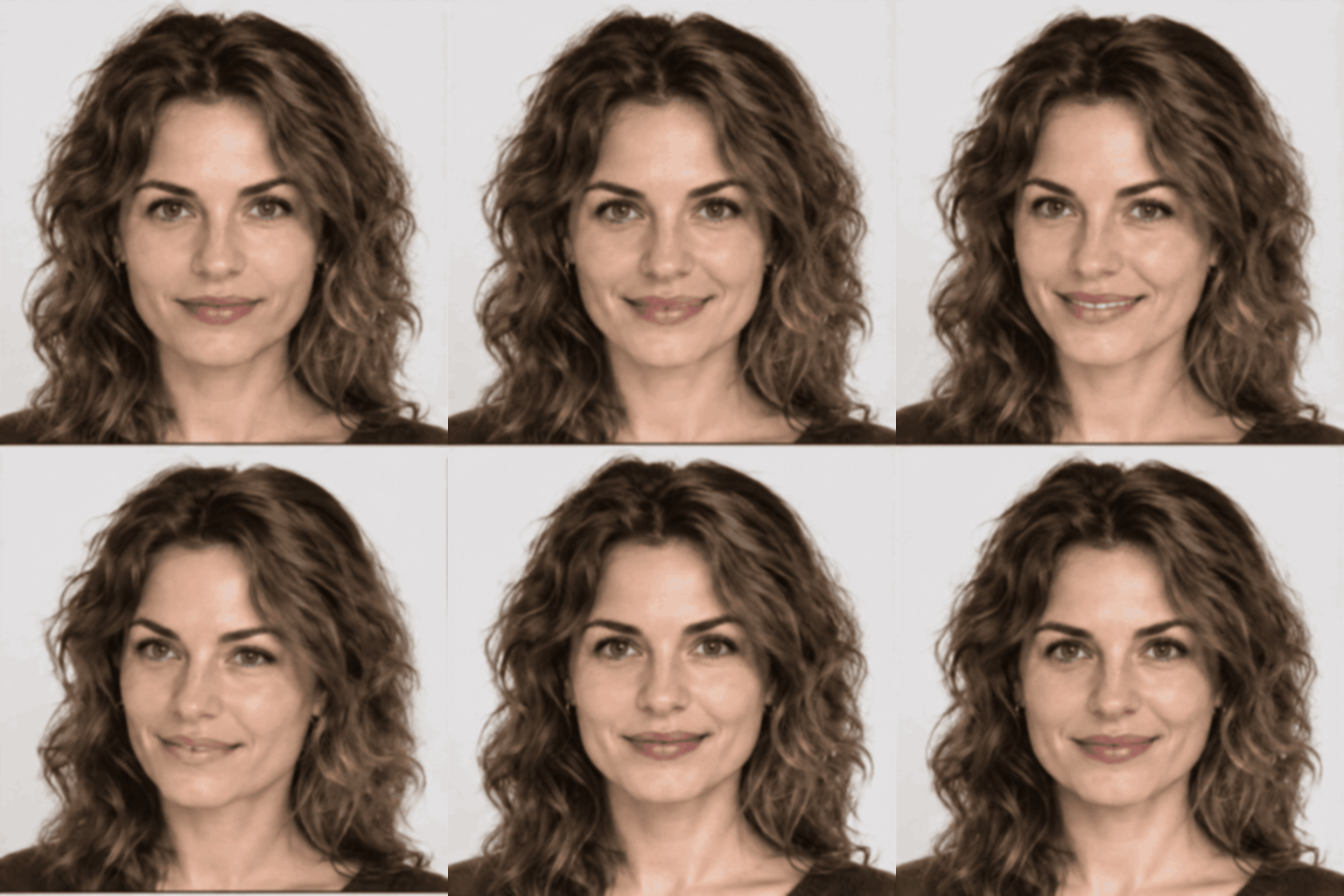
Use an unobstructed face and ask for a small expression change. Eyes, teeth and hair may vary between frames, so inspect each part of the loop before sharing a close-up.
Pets
A clear view of the animal helps preserve its markings. Try an ear twitch, a slow blink or a subtle head tilt rather than asking an unseen limb to perform a complex trick.
Products
Choose an image where the packaging and silhouette are readable. Let a shadow shift or a background element move; small lettering and logos may change, so do not assume they remain exact.
Landscapes
Clouds, water and foliage provide natural candidates for restrained movement. Keep the horizon steady and specify which area should move so the whole view does not drift.
Turn a photo into a GIF, step by step
First, sign in to this site and select the image control in the generator. Choose the file from your device, then write a short instruction such as “the cat blinks slowly while the camera stays still.” An image with a small, clearly described action is easier to assess than one with multiple competing movements.
Submit once and watch the displayed job status. When processing finishes, use the download control and inspect the file in a viewer that plays animated GIFs. The number of frames and their timing are set by the service; you do not need to upload a separate image for each frame.
If the result is close but not useful, decide what went wrong before making another request. Change either the source photo or the motion instruction, rather than changing everything at once. A failed job is refunded automatically; a new successful submission uses another credit.
Common problems and fixes
Blur can originate in a low-resolution or out-of-focus source. Try a sharper original and make the subject larger within the crop. If motion causes the subject to leave the frame, request a smaller gesture and explicitly describe a stationary camera.
A crowded background can distract from the intended action. Use a simpler photo or ask for the background to stay still. When a face changes between frames, choose a clearer frontal image and reduce the requested movement; these steps can help, but exact facial preservation is not guaranteed.
If the file is rejected, check both its format and size. Export a supported image from your normal editor and keep it within the upload limit. A valid extension alone cannot repair a corrupted file, and an animated source is not a substitute for a supported still image.
Frequently asked questions
Which photo formats can I upload?
The uploader accepts JPG, PNG and WebP images. Each request accepts one source image.
Can a transparent PNG be used as the source?
A PNG can be uploaded, but the generated scene may not preserve transparency exactly.
What if my photograph exceeds the upload limit?
Choose or export a file no larger than 5 MB before selecting it.
Will a product label remain identical?
No exact preservation is guaranteed. Inspect the generated frames before using a result where a label or logo must be accurate.
Why does the animated portrait look different?
The model synthesizes frames from the source and instruction. A clearer photo and smaller movement may improve consistency.