How to Make a GIF with GPT Image 2.6
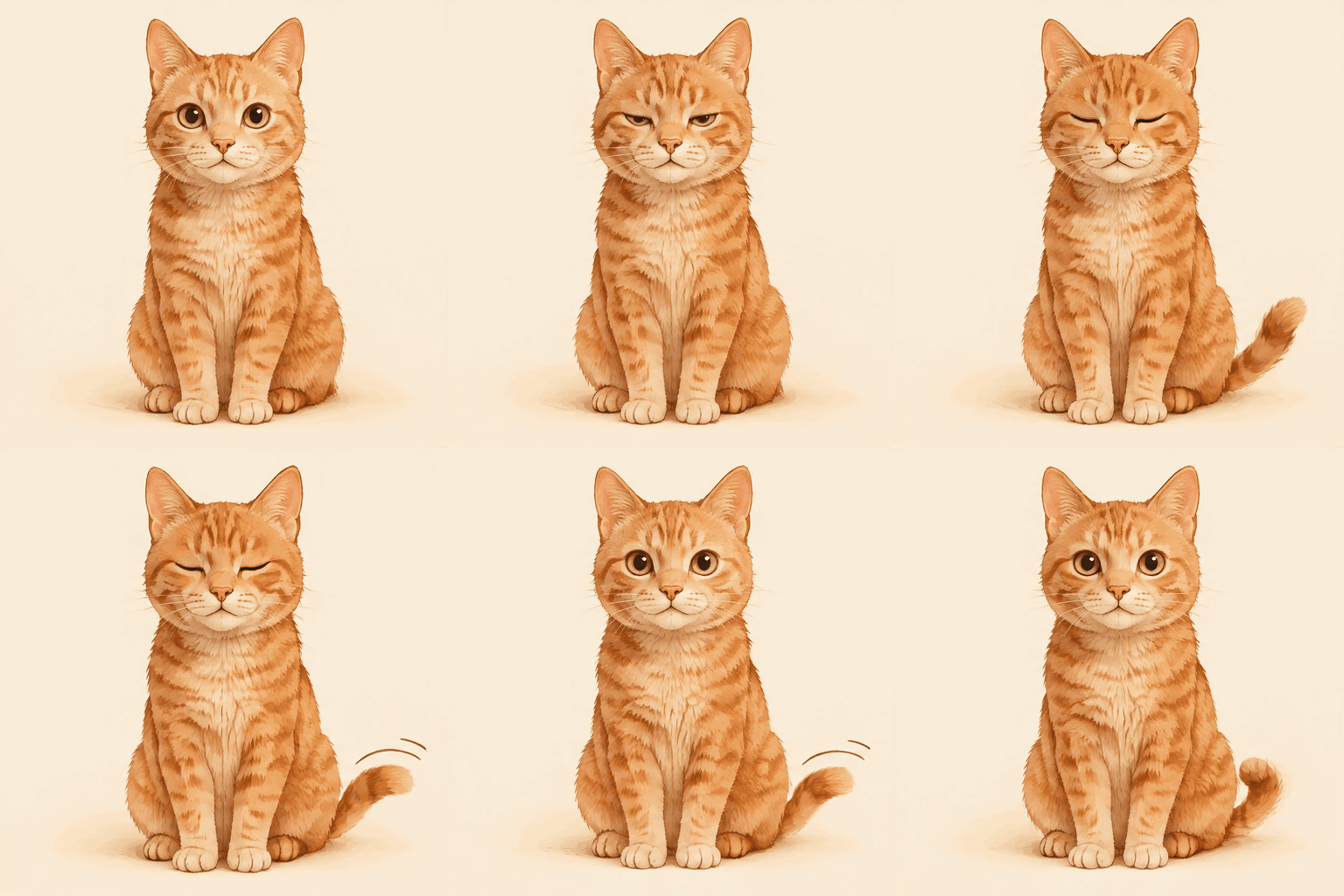
Step 1 — Describe your idea or upload a photo
Start by deciding what a viewer should notice during a short loop. A single blink, a gentle wave or a floating object is easier to read than a sequence with several separate events. Write the subject and intended movement in plain language.
If the animation should start from a particular photograph, select one image you are allowed to use. Accepted formats are JPG, PNG and WebP, up to 5 MB. A sharp image with room around the subject gives the movement somewhere to go.
The prompt can also specify a visual treatment or a stable camera. Keep the most important instruction near the beginning. You can revise the wording after reviewing an output, so a first attempt does not have to describe every detail.
Step 2 — Choose text mode or photo mode
The interface determines the route from your input: an attached image starts photo mode, while leaving the image field empty uses text mode. You do not need to prepare separate frames or upload a video.
Use text alone to invent a scene. Use a photograph when its existing appearance is important, but expect the model to interpret the image rather than preserve every feature exactly. For a photo request, describe the part that should change and the parts you want to remain steady.
Check your account balance before submitting. The generator requires a site sign-in. The input field and upload control can be used together, but the service accepts only one source image per request.
Step 3 — Generate and check the loop
Submit the request once and follow its status. The wait varies with processing and queue conditions; there is no guaranteed twenty-second completion time. Keep the page available or return to your account when the job has finished.
A completed result has a 1.8-second playback cycle. Watch the transition from the last frame back to the first rather than judging only a single still. Check whether the subject stays recognizable and the requested action reads at a glance.
If the animation drifts, specify a fixed viewpoint and a smaller gesture in a future prompt. If the subject is too small to read, adjust the composition. A revision starts another generation, so decide what to change before submitting it.
Step 4 — Download and test it where you will post
Use the download control after the result is ready. Open the file locally in a compatible viewer and watch several cycles; a preview thumbnail may show only one frame even when the file itself is animated.
Upload a test copy to the destination you intend to use. Messaging apps and publishing platforms can impose their own file-size limits, resizing or conversion rules. A GIF that plays smoothly in one viewer may be displayed differently elsewhere.
Check the result at its final size, including any cropping by the destination. If a product label, face or other detail is important, inspect it for unintended changes throughout the cycle rather than only at the start.
For a reaction image, test the loop in a conversation with a trusted recipient before using it broadly. A platform may show a static thumbnail until playback starts, and the image can appear smaller than it did on the creation page.
For a presentation or a website, check whether the intended placement repeats the animation automatically. Some viewers respect reduced-motion preferences or pause animated media. Keep a still alternative available if the motion carries information that a viewer might otherwise miss.
Troubleshooting common failures
A failed generation is refunded automatically. If the status reports a failure, review the input and try again only when appropriate; check that your account and source file meet the stated requirements.
For visible jumps between frames, ask for a repeatable movement with a similar beginning and ending pose. A static camera and modest movement can help, though the model does not guarantee a seamless transition.
When a destination rejects the file for size, first check that platform’s published limit. An external editor may be able to resize or optimize a copy, but doing so changes the file and can affect appearance. Keep the original download if you need to compare versions.
If an upload is not accepted, confirm that it is a supported still image and fits the size limit. Open the original on your device to check that it is not corrupted. Correct the source before retrying rather than submitting the same invalid file repeatedly.
Frequently asked questions
What should I write before starting the tutorial?
Describe one subject and one motion that can be understood in a short loop.
How is photo mode selected during these steps?
The generator uses photo mode when a supported image is attached.
What should I do when a job fails?
A failed job is refunded automatically. Check its status and input before trying again.
How can I inspect the loop boundary?
Play the file repeatedly and watch the transition from the final frame to the first.
Why might a messaging app reject the download?
The app may have its own file-size or format rules. Check its requirements and test the file there.